How DNS Resolution Works

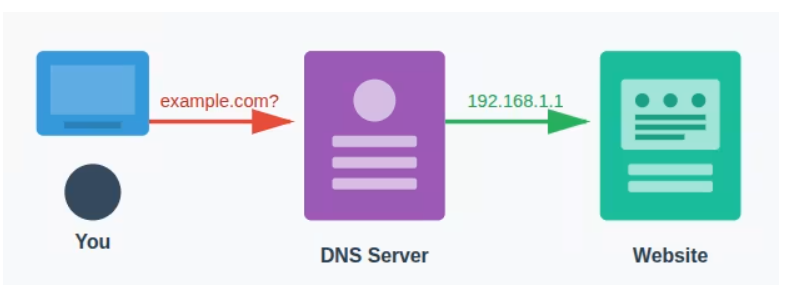
The Domain Name System, or DNS for short, is often referred to as the phone book of the internet.
Have you ever thought about what really happens when you type google.com into your browser and a website opens almost instantly? It may feel like magic, but there’s a smart system working quietly in the background called DNS (Domain Name System).
DNS helps the internet understand what website you want to visit. Since computers don’t understand website names, DNS converts easy names like google.com into special numbers called IP addresses. These numbers tell your browser exactly where the website is located, allowing it to load the page for you in just seconds.
What Is DNS and Why Is It Important?
DNS (Domain Name System) is a system that converts human-friendly domain names into machine-readable IP addresses. Without DNS, you would have to remember numbers instead of names for every website you visit.
How DNS Resolution Works (Step-by-Step)
Let’s break down DNS resolution into simple steps.
Step 1: User Enters a Domain Name
When you type any domain, for example, ‘amazon.com’ into your browser, it sends a request to a DNS resolver to find the website’s IP address.
Step 2: DNS Recursive Resolver Checks Cache
The resolver first checks its cache to see if it already has the IP address stored. If found, it returns the result immediately.
**Step 3: Query to Root Name Server
**If the IP isn’t cached, the resolver contacts a root name server. The root server doesn’t know the exact IP, but directs the resolver to the correct TLD server (e.g., .com).
Step 4: Query to TLD Name Server
The resolver then reaches out to the TLD server for the domain extension. The .com TLD server helps locate the authoritative DNS server for ‘amazon.com’.
Step 5: Query to Authoritative DNS Server
The authoritative server holds the domain’s DNS records and provides the correct IP address for the website.
Step 6: Returning the Final IP Address to the Browser
The resolver sends the final IP address back to your browser.
Step 7: Browser Connects to the Web Server
With the IP address, your browser connects to the website’s server and loads the webpage for you.
Real Life Example
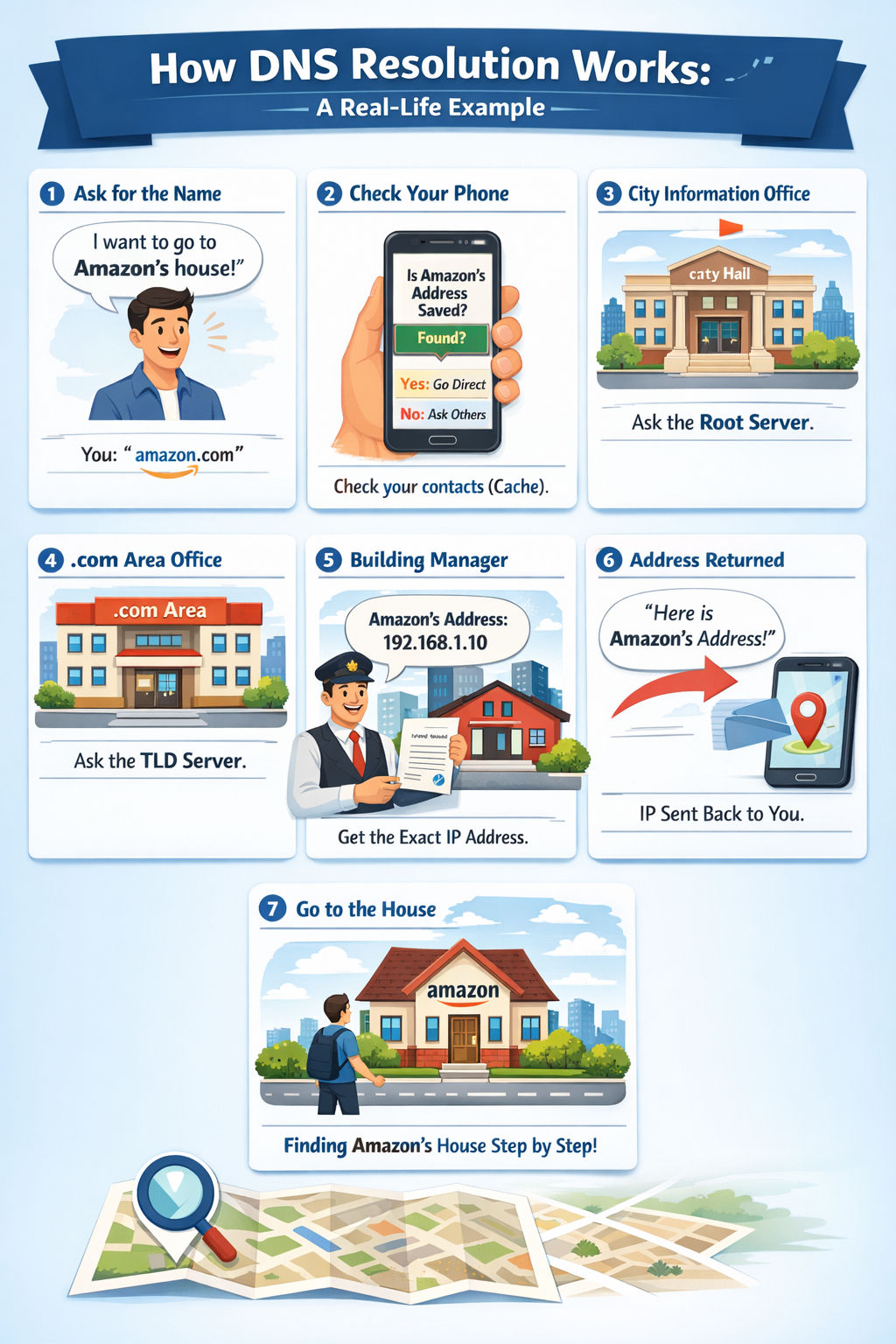
🌍 Real-Life Example: Finding a Friend’s House
Imagine you want to visit your friend Amazon, but you only know their name, not their house address.
🧑 Step 1: You Ask for the Name (User Enters Domain)
You say:
“I want to go to Amazon’s house.”
👉 This is like typing amazon.com in your browser.
📒 Step 2: Ask Your Phone Contacts (DNS Cache Check)
First, you check:
“Do I already have Amazon’s address saved in my phone?”
If YES → You go directly.
If NO → You ask others.
👉 This is the DNS resolver checking its cache.
🌍 Step 3: Ask the City Information Office (Root DNS Server)
You go to the main city office and ask:
“Where can I find someone named Amazon?”
They reply:
“Amazon lives in the .com area. Ask the .com office.”
👉 Root server doesn’t know the address, but guides you.
🏢 Step 4: Ask the Area Office (.com TLD Server)
Now you go to the .com area office and ask:
“Where exactly is Amazon in this area?”
They reply:
“Ask Amazon’s own building manager.”
👉 This is the TLD server pointing to the authoritative server.
🏠 Step 5: Ask the Building Manager (Authoritative DNS Server)
You ask Amazon’s building manager:
“What is Amazon’s exact house number?”
They answer:
“Here is the exact address: IP Address.”
👉 This server has the final, correct information.
📲 Step 6: Address Given Back to You (IP Returned)
The address is sent back to you:
“Here’s where Amazon lives.”
👉 DNS resolver sends the IP address to your browser.
🚶 Step 7: You Visit the House (Browser Connects)
Now that you know the address:
You go straight to Amazon’s house and meet them.
👉 Browser connects to the web server and loads the website.
DNS Caching Explained
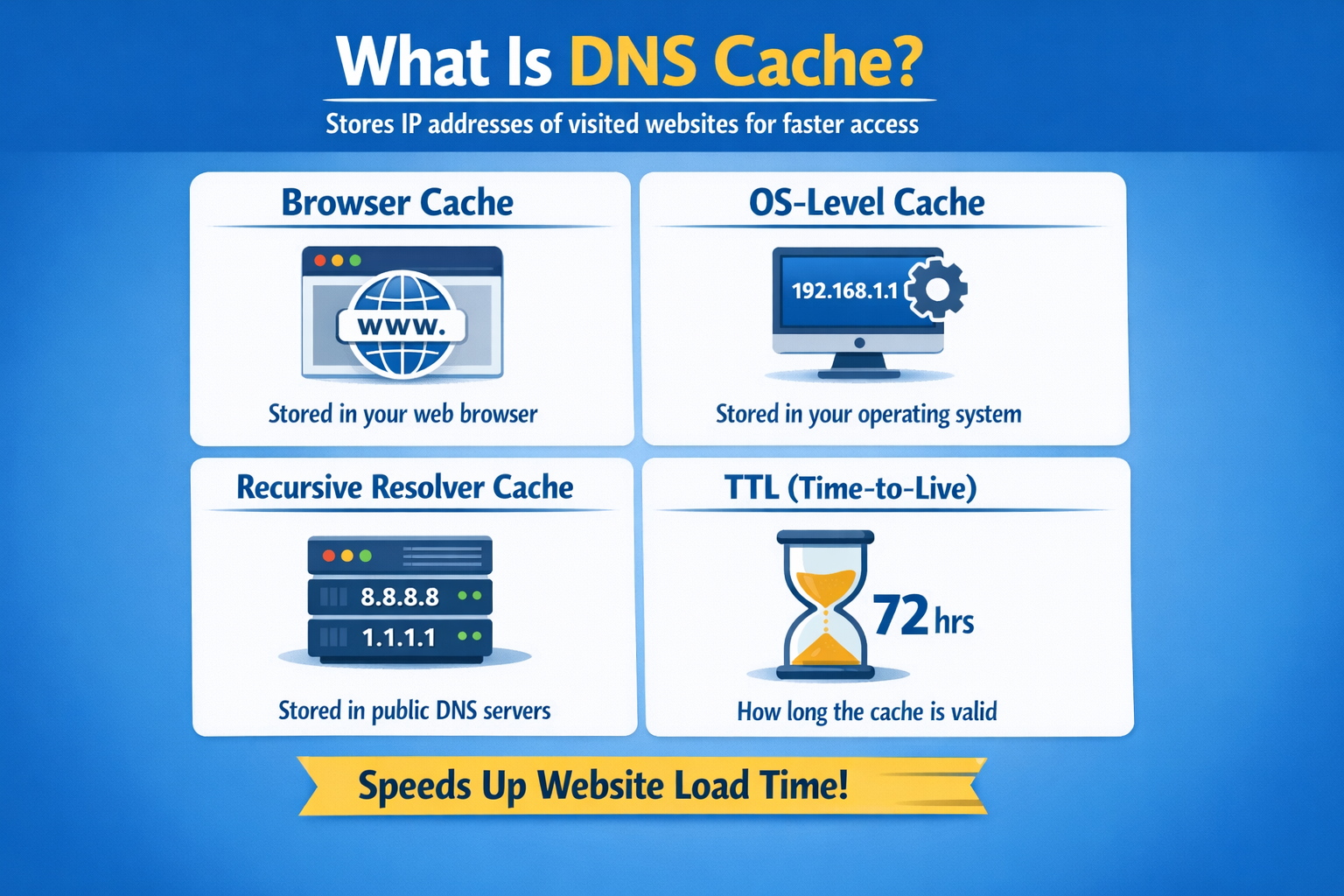
DNS caching helps speed up the process of finding a website’s IP address by storing previous lookup results temporarily.
Common DNS Issues and Errors
DNS_PROBE_FINISHED_NXDOMAIN
This error appears when the domain cannot be found, usually because the domain doesn’t exist, or there’s a DNS misconfiguration.
DNS Server Not Responding
This occurs when the DNS server you are using is down, unavailable, or unable to process requests.
**Slow DNS Resolution
**Happens when DNS servers are slow, overloaded, or the request has to travel through multiple distant servers, causing delays in loading websites.
How to Improve DNS Performance
Use Faster DNS Providers
Switch to trusted and high-speed DNS providers, like Cloudflare (1.1.1.1), Google DNS (8.8.8.8), or OpenDNS to reduce lookup time and improve browsing speed.
**DNS Load Balancing
**Balances traffic across multiple DNS servers to increase reliability and ensure the system stays available even during high traffic.
Use Anycast DNS
Distributes DNS servers across the globe so users connect to the nearest server, resulting in faster response times.
DNSSEC for Security
Adds a layer of security by preventing DNS spoofing and ensuring that DNS responses are authentic.
The Role of DNS in the Internet World
📱 Phone Contacts Example
You save a name like “Mom” in your phone.
When you tap Mom, your phone automatically uses the number stored behind the name.
You don’t need to remember the phone number every time.
👉 DNS works the same way
You type google.com
DNS finds the IP address (like
142.250.192.14)Your browser connects to the website instantly
Key Components of DNS
For DNS to work efficiently, several components interact with each other, during the resolution process.
1) DNS Client (Resolver)
A DNS resolver is the first point of contact when your device needs to find the IP address of a website. It is usually provided by your ISP, or a public DNS service like Google (8.8.8.8) or Cloudflare (1.1.1.1). Its job is to receive your DNS request and start the process of finding the correct IP address for the domain you entered.
**2) Root Name Servers
**Root name servers are at top level in DNS hierarchy. They don’t store website IP addresses, but act as a guide. When the resolver doesn’t know where to find the domain, the root server directs it to the correct Top-Level Domain (TLD) server (like .com, .net, or .org).
3) TLD Name Servers
TLD servers manage information for specific domain extensions such as .com, .net, .org, .in, etc. When contacted, they don’t give the final IP, but point the resolver to the correct authoritative name server responsible for the domain.
4) Authoritative Name Servers
These servers hold the actual DNS records of a domain. They provide the final answer, the correct IP address of the website, which is then sent back to the user’s browser to load the site.
**5) DNS Records and Their Types:
**DNS records are like instructions stored on authoritative servers that tell the DNS how a domain should function. The key record types include:
A Record: This record links a domain name to its IPv4 address (e.g., 192.168.1.1). It tells browsers, which server to connect to when someone types your domain.
AAAA Record: Similar to the A record, but it maps a domain to an IPv6 address (e.g., 2001:db8::1). It supports the newer, longer IP format.
CNAME Record: A CNAME (Canonical Name) record points one domain name to another domain name. It’s often used for subdomains, for example, pointing blog.example.com to example.com.
MX Record: The MX (Mail Exchange) record specifies which mail server should handle emails for a domain. Without it, email services won’t know where to deliver your messages.
TXT Record: A TXT record stores text-based information. It’s commonly used for verification and security, such as SPF, DKIM, and Google site ownership verification.
NS Record: This record shows, which name servers are authoritative for a domain, meaning they hold the actual DNS records and answer DNS queries for that domain.
What is the
digcommand and when it is usedThe dig command, short for domain information groper, is a powerful network tool for querying domain name system (DNS) servers. It helps diagnose and resolve DNS-related problems, essential for maintaining network stability and performance.
Syntax
The basic syntax of the dig command is as follows
dig [server] [name] [type]
Here’s an explanation of each argument:
[server] (optional). The IP address or hostname of the DNS server to query. dig will use the DNS servers listed in /etc/resolv.conf if omitted.
[name]. The domain name to query. This is the DNS resource record about which you want information.
[type] (optional). The DNS record type to query, including A, MX, and NS. dig will query an A record if no type is specified by default.
For instance, to query an A record for example.com, you can run:
dig example.com
What is the dig command used for?
The dig command is used to query DNS name servers. It retrieves DNS information about numerous records, such as A, MX, and NS, helping diagnose and resolve network-related problems.
Understanding dig . NS and root name servers
The NS records identify the name servers, responsible for your DNS zone.
dig→ Tool to ask DNS questionsdig NS→ Find who manages a domain
What is dig NS?
NS = Name Server
When you run:
dig google.com NS
You are asking:
❓ “Who is responsible for telling the address of google.com?”
In simple words:
dig NStells you which servers manage a domainThese servers know where the website lives (its IP)
Real-life example 🏠
Domain name →
google.comName servers → The caretakers of the domain
They know:
Website IP
Email records
Other DNS details
So:
dig google.com NS
\=
“Show me the caretakers of google.com”
Explain how DNS resolution happens in layers: root → TLD → authoritative
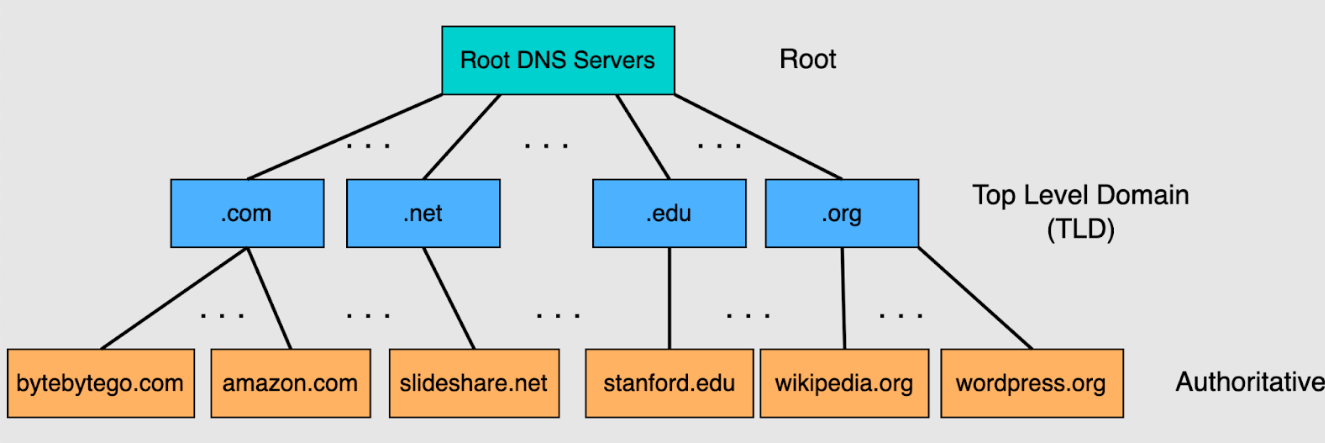
DNS is not one big database. It’s hierarchical:
Root name servers (.)
TLD name servers (.com, .org, .in)
Authoritative name servers (google.com)
Each layer only knows where to go next
4️⃣ dig . NS → Root name servers
Command
dig . NS
What it means
.= root of DNSAsking:
“Who manages the root of the internet?”
Role of recursive resolver (hidden hero)
You never talk to root/TLD servers directly.
Your system uses a recursive resolver
Resolver:
Walks the hierarchy
Caches answers
Reduces internet load
Example resolvers:
ISP DNS
Google DNS
8.8.8.8Cloudflare
1.1.1.1
📌 Caching is why websites load fast
9️⃣ Connecting this to real browser requests
When you type:
https://google.com
Browser needs:
- IP address → DNS
TCP connection → IP
TLS handshake → HTTPS
HTTP request → page load
👉 DNS is always the first step
If DNS fails → nothing works
🔟 One-screen mental model (interview ready)
dig . NS
→ Root servers (start point)

dig com NS
→ TLD servers (.com owners)

dig google.com NS
→ Authoritative servers (domain owners)

dig google.com
→ Final IP (what browser needs)
